Cybrary for Teams with 10+ members can add SSO integration
Table of Contents
Introduction
What is SAML?
What is SSO?
Benefits of SAML 2.0 SSO
Configure SAML 2.0 SSO for Okta
Configure SAML 2.0 SSO for OneLogin
Configure SAML 2.0 SSO for Azure
See Also: Cybrary for Teams Handbook
Introduction
Cybrary provides a seamless one-click sign-in experience using your existing SSO provider (Okta, Onelogin, Azure). This self-service integration can be easily configured using the industry standard SAML 2.0.
What is SAML?
Security Assertion Markup Language (SAML) provides the user with online security and enables the user to access multiple web applications using one set of login credentials. It works by passing authentication information in a particular format between two parties, usually an identity provider (idP) and a web application.
What is SSO?
Single sign-on (SSO) is an authentication method that enables users to securely authenticate with multiple applications and websites by using just one set of credentials.
Benefits of SAML 2.0 SSO
- Increased security
- Easy off-boarding
- No more forgotten passwords
- It improves the user experience as you only need to sign in once to access multiple web applications (No need to remember multiple sets of credentials)
- Speeds up the authentication process
Configure SAML 2.0 SSO for Okta
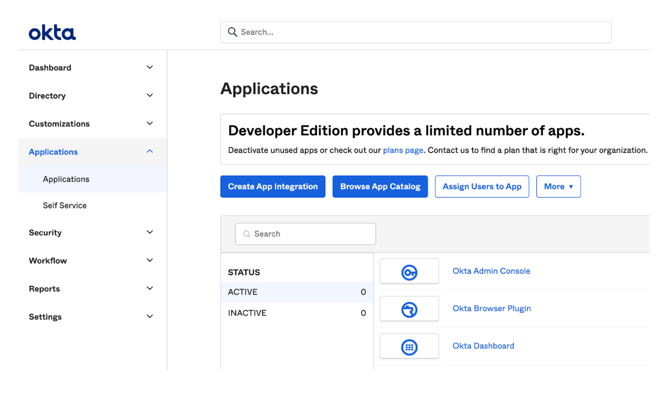
1. In your Okta Application navigate to the Applications -> Applications option on theleft nav and select Create App Integration.
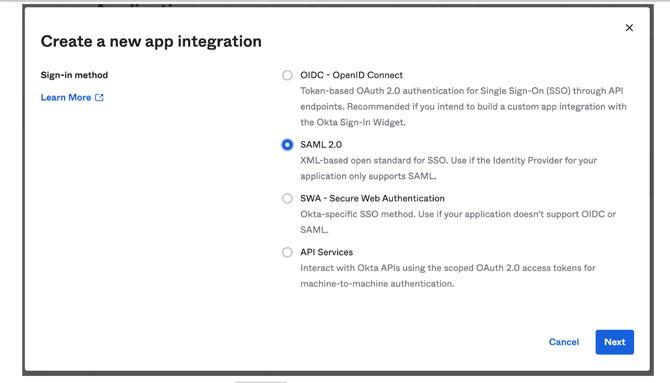
2. Select the SAML 2.0 option and click Next.
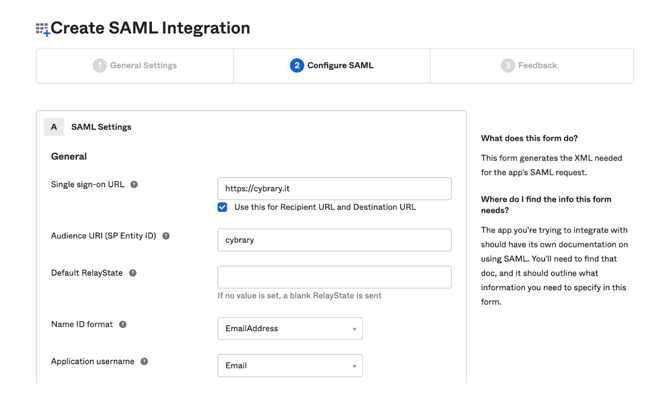
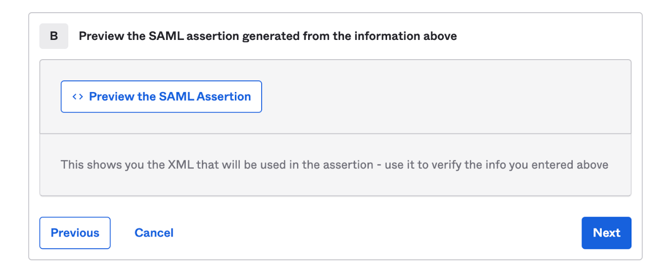
5. Scroll down to the bottom and click the Next button.
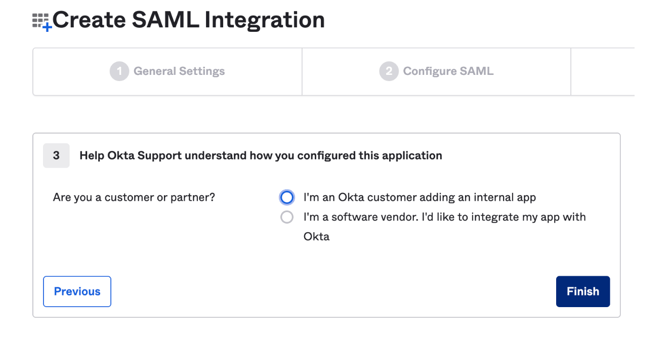
6. Select the first option: I’m an Okta customer adding an internal app. You can ignore the rest of the questions that appear, just scroll to the bottom and click Finish.
7. The Okta SSO application has now been created, now you need to update your team’s SSO configuration in the Cybrary app. Navigate to the Sign On tab.
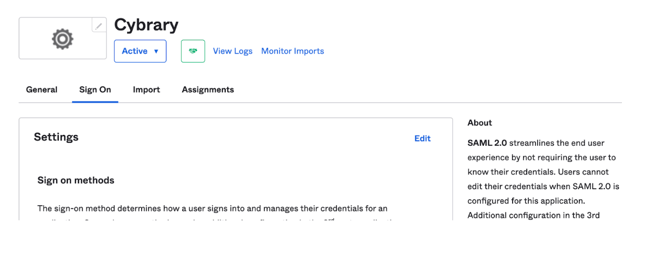
8. Scroll down until you see the SAML Setup section on the right. Click View SAML setup instructions.
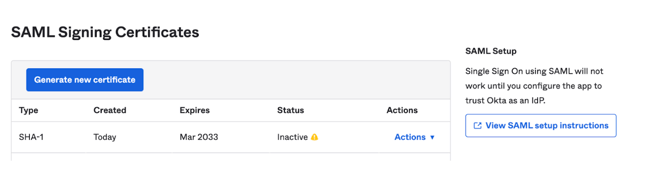
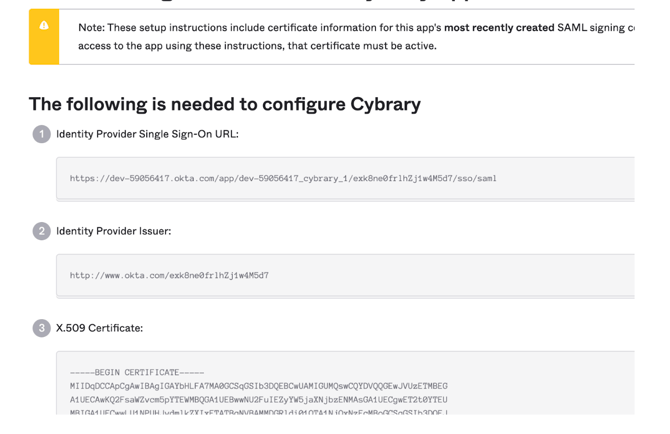
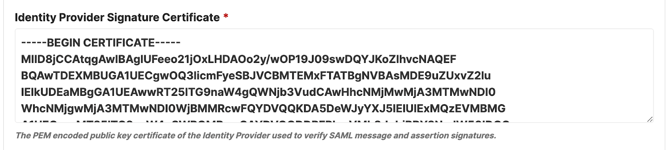
9. This page contains information you will need to copy over to the Cybrary app to enable SSO. Leave it open and open a new tab/window.
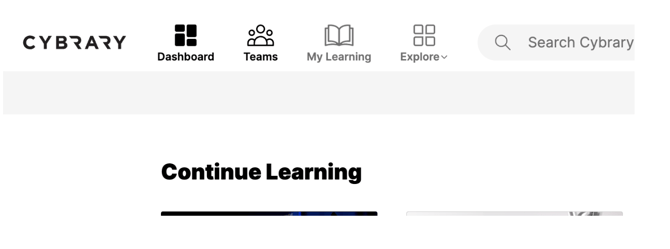
10. In the new tab/window, log in to https://app.cybrary.it and click on Teams in the top navigation.
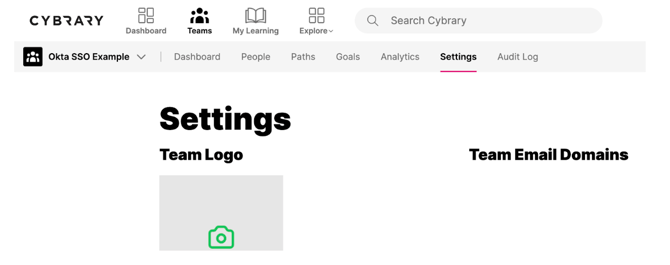
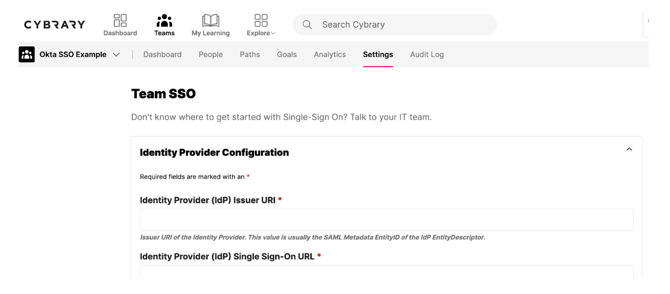
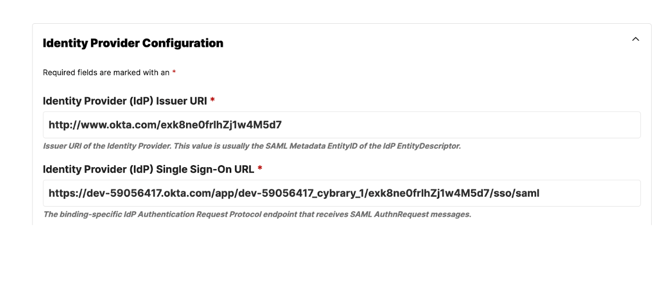
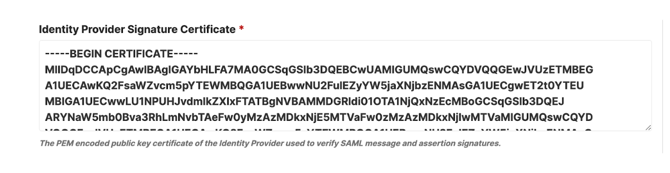
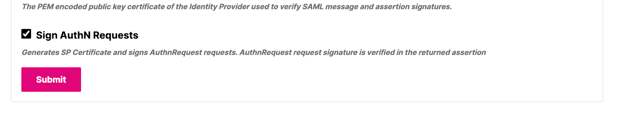
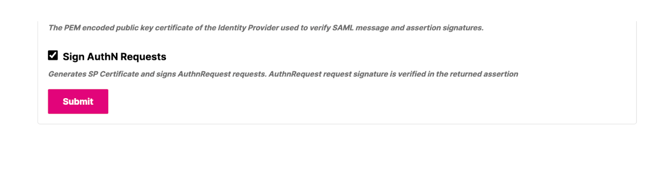
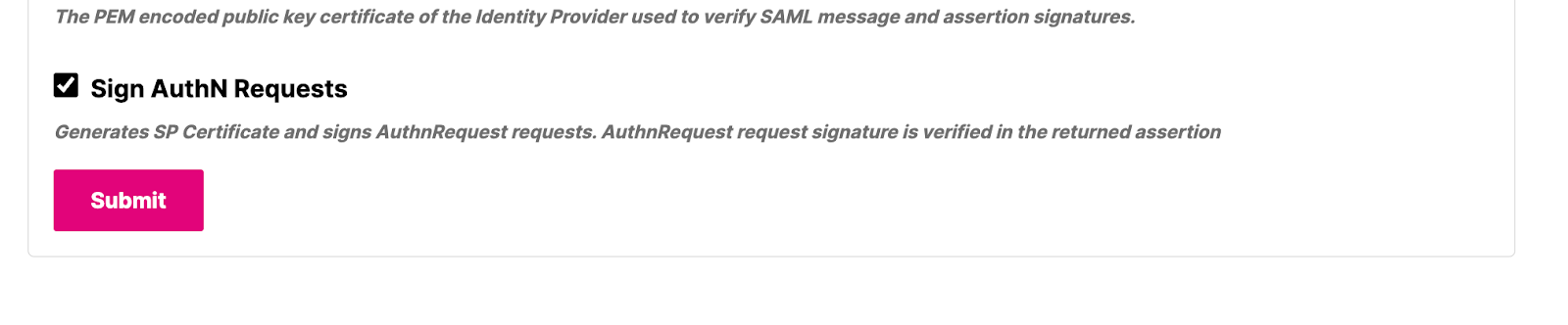
15. Check the Sign AuthN Requests option and click Submit. The page will refresh.
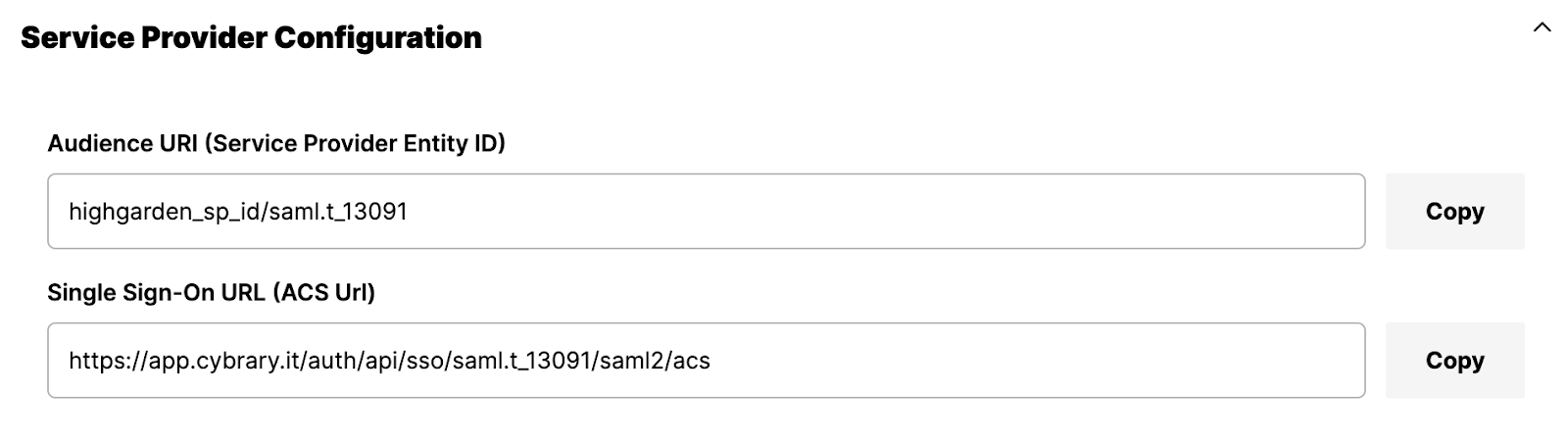
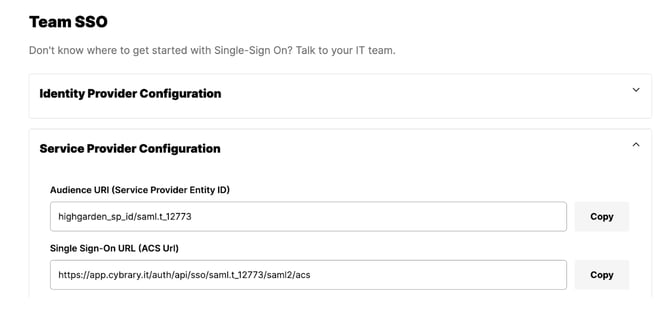
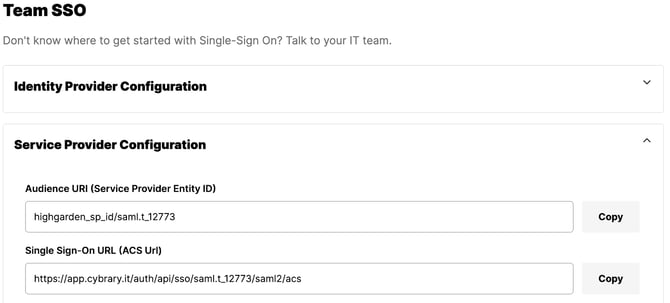
16. Scroll down to the Service Provider Configuration section in the Team SSO Section. You will need to copy these values over to the Okta app. Leave this page open.
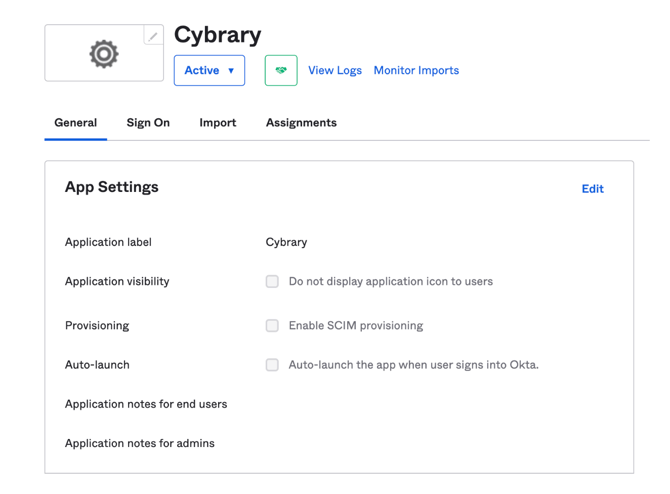
18. Scroll down to the SAML Settings section and click Edit.
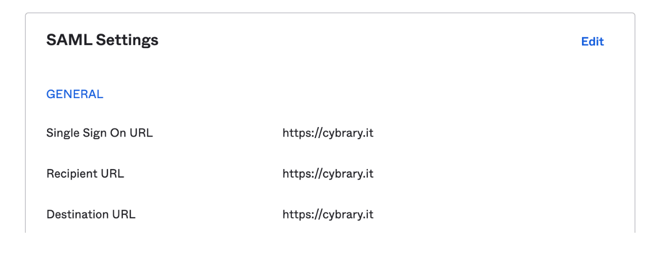
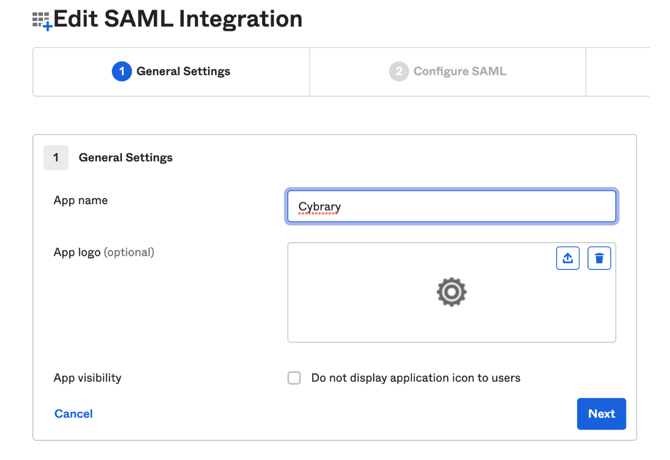
20. Update the Single sign-on URL and the Audience URI (SP Entity ID). These values can be found back in the Cybrary page you left open in the Service Provider Configuration section. Make sure you enter the correct value for each field by matching the field names.
21. Scroll down to the bottom and click Next.
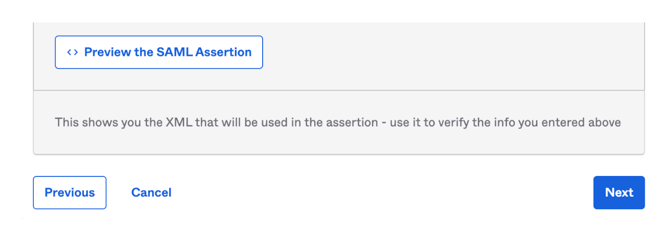

23. Your SSO application configuration is now complete. Once users are assigned to the application in Okta they will be able to log in with SSO.
Configure SAML 2.0 SSO for OneLogin
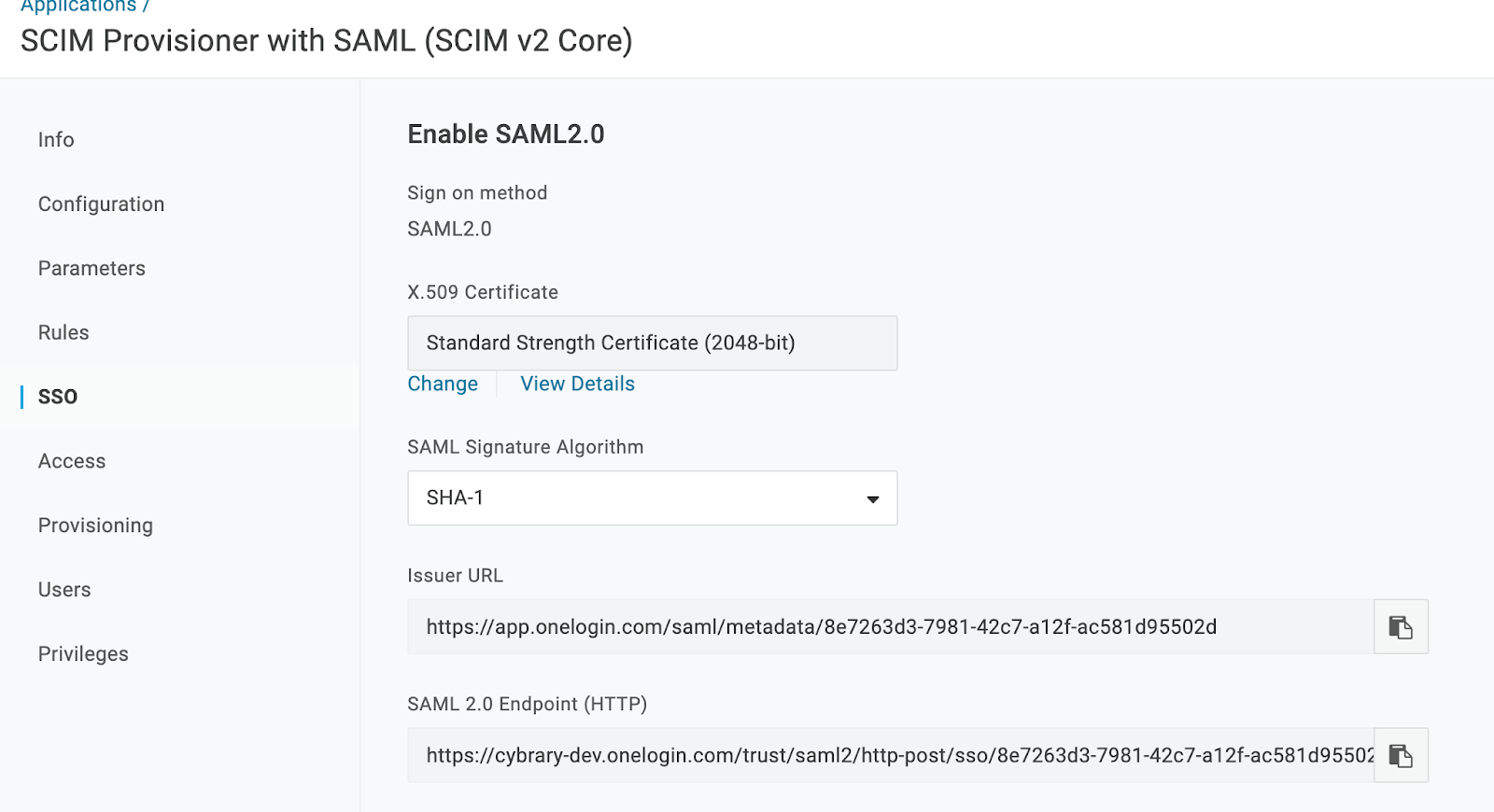
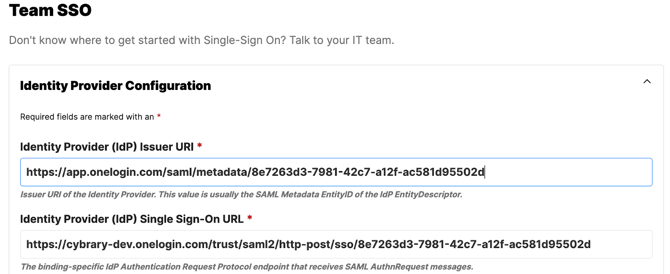
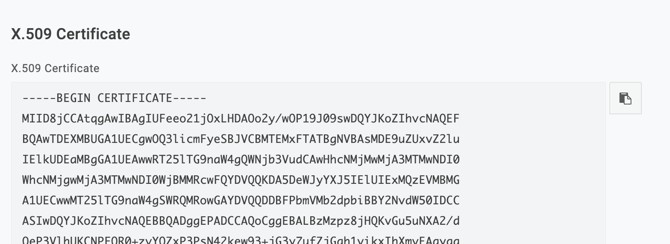
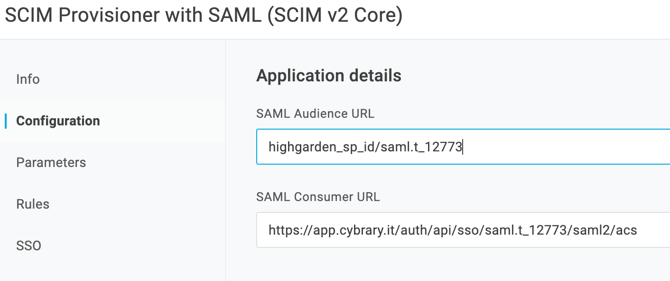
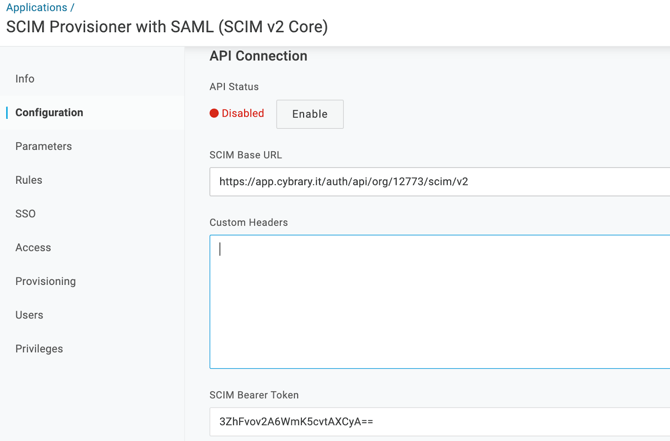
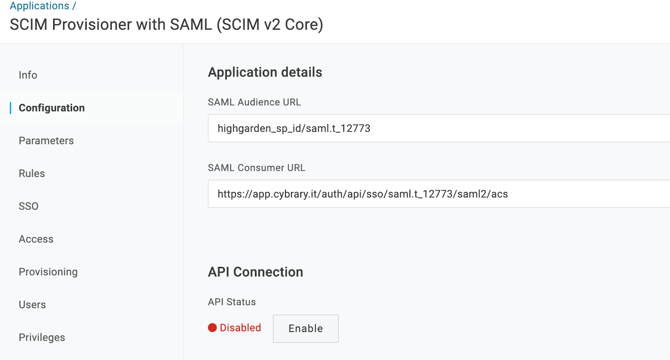
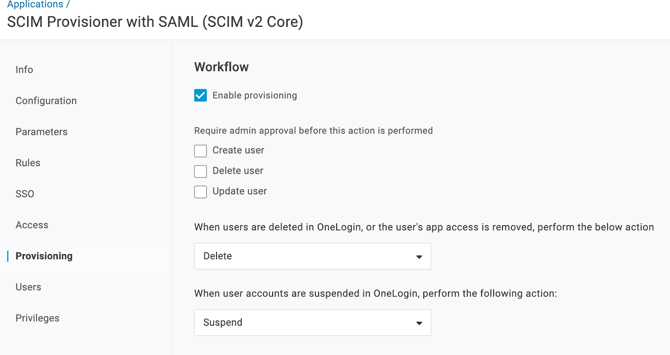
Note: OneLogin instructions based on the SCIM Provisioner with SAML (SCIM v2 Core) application, layout and field names may vary for different applications.
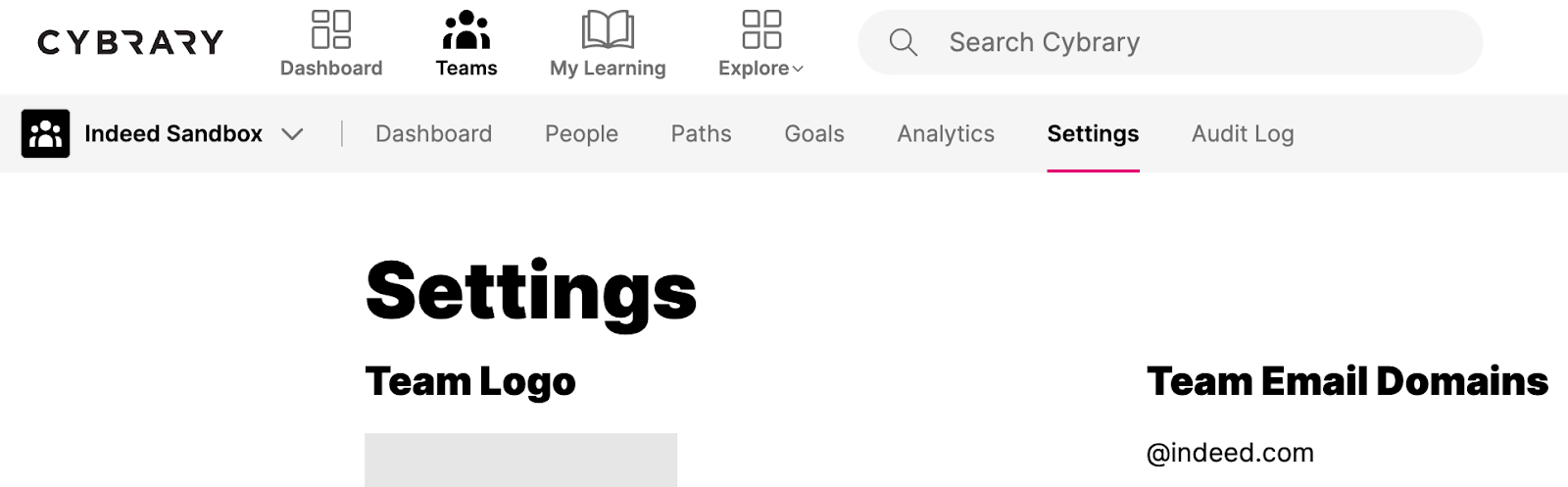
1. Log in to app.cybrary.it and click on Teams in the top navigation


Configure SAML 2.0 SSO for Azure
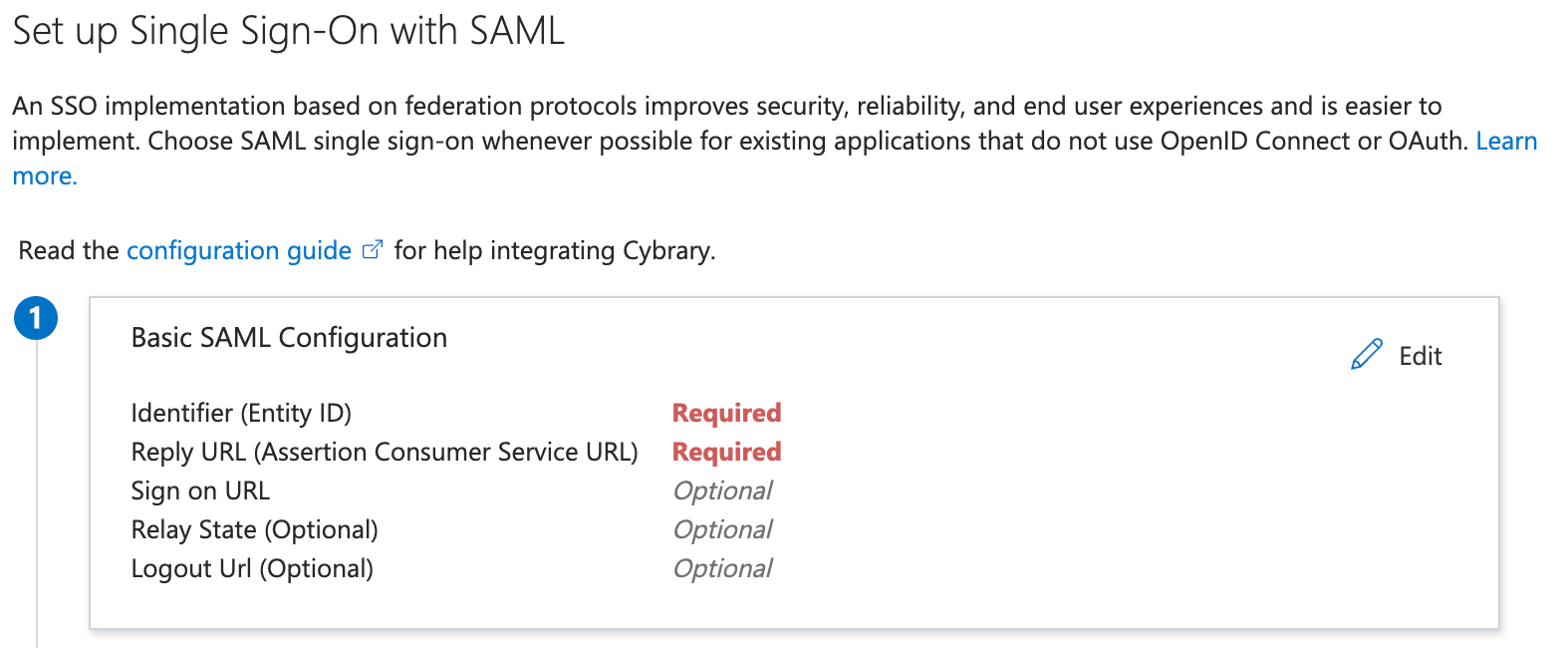
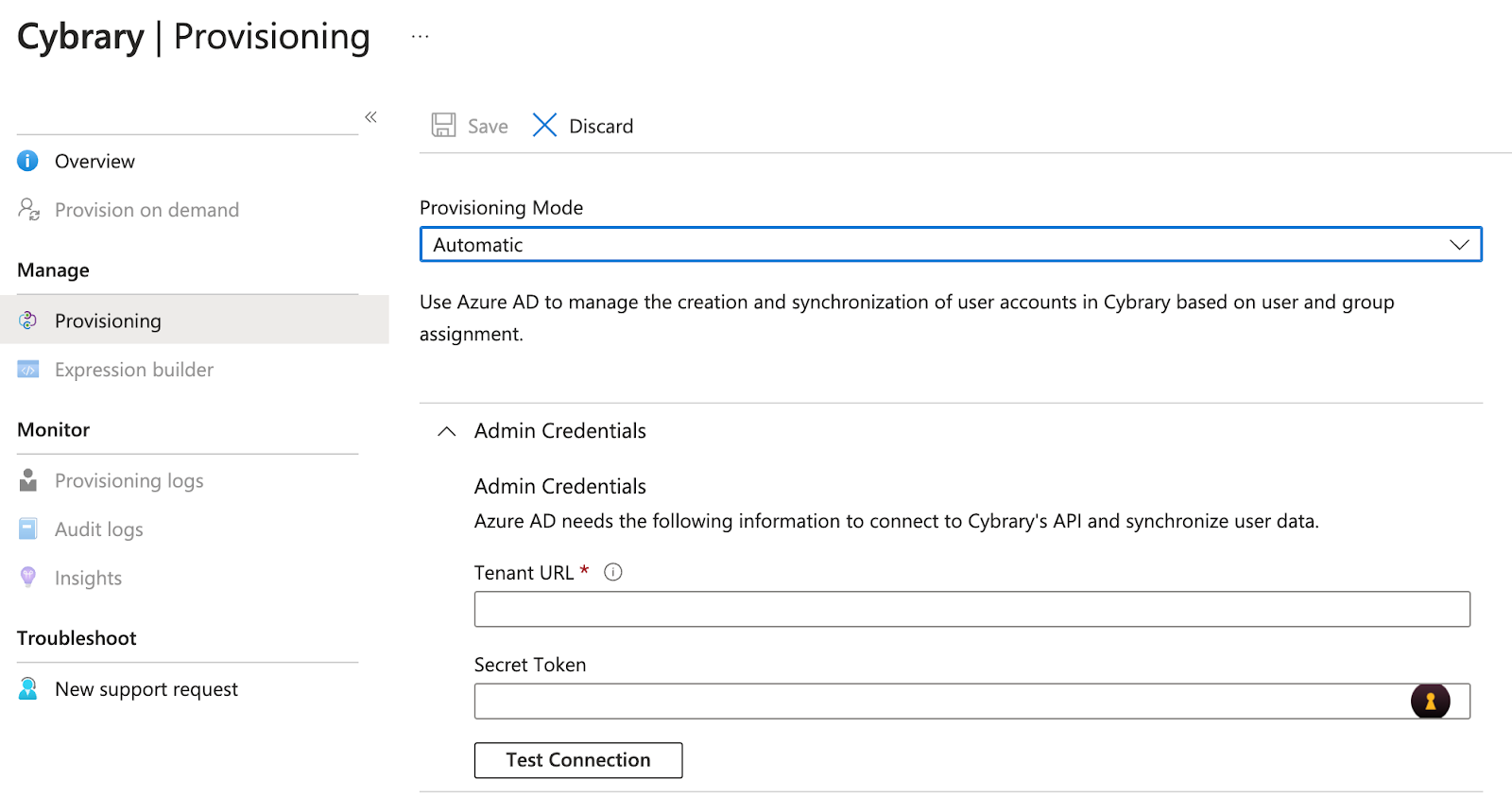
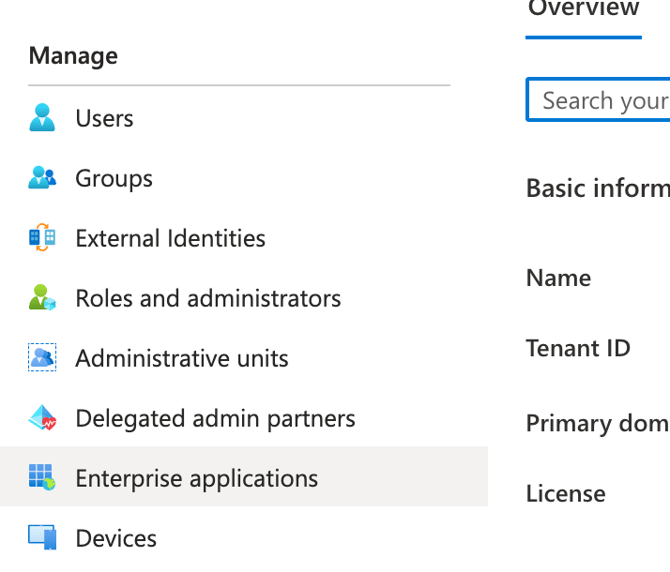
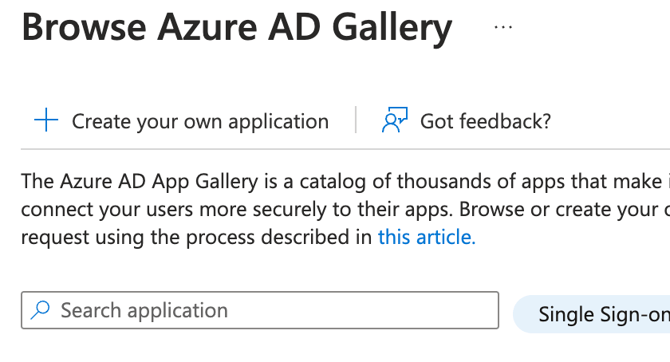
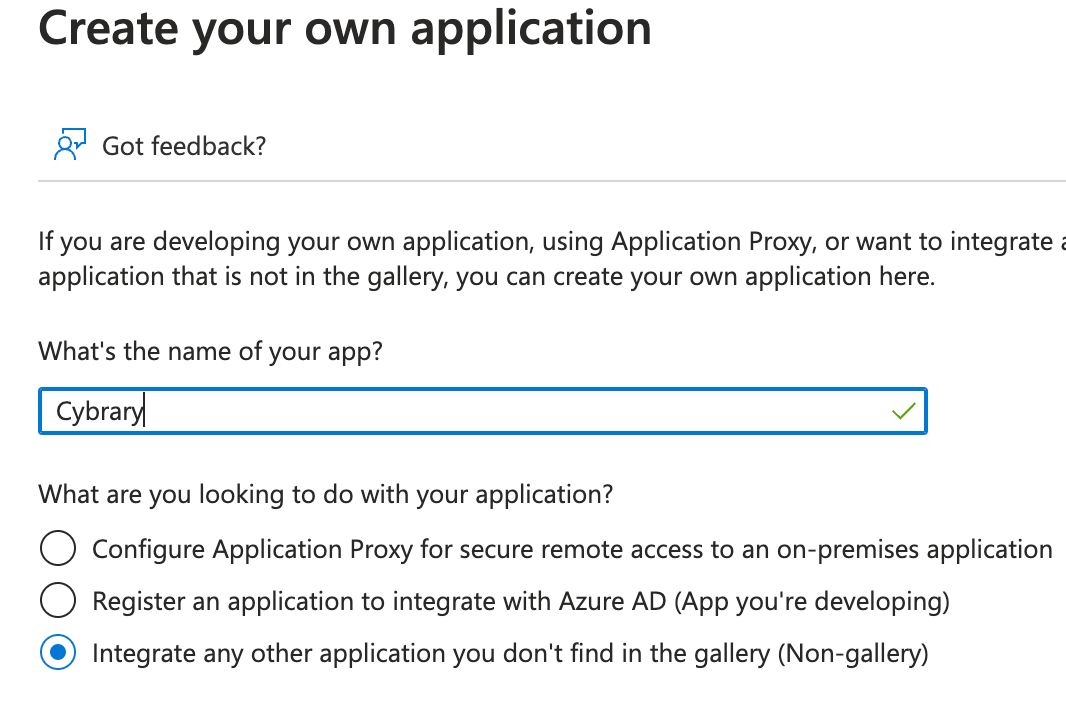
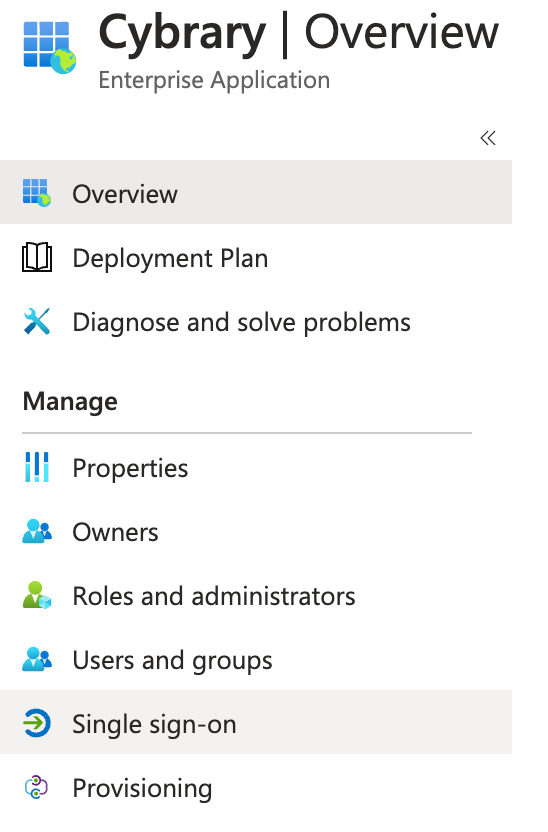
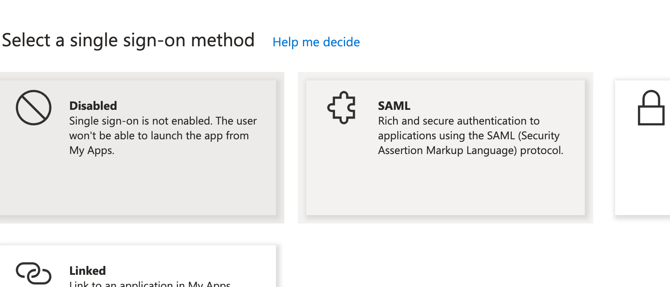
1. In Azure Active Directory select Enterprise Applications in the left nav.

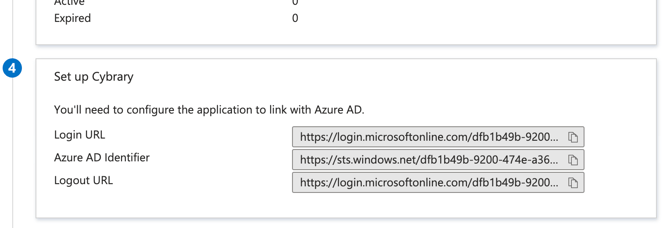
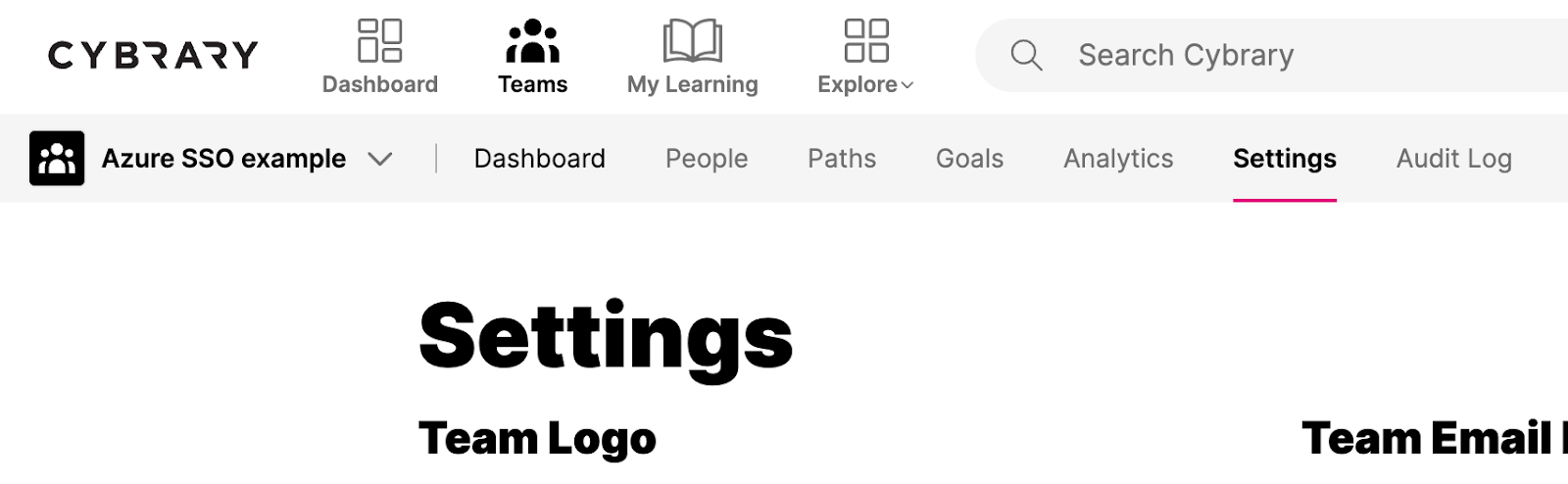
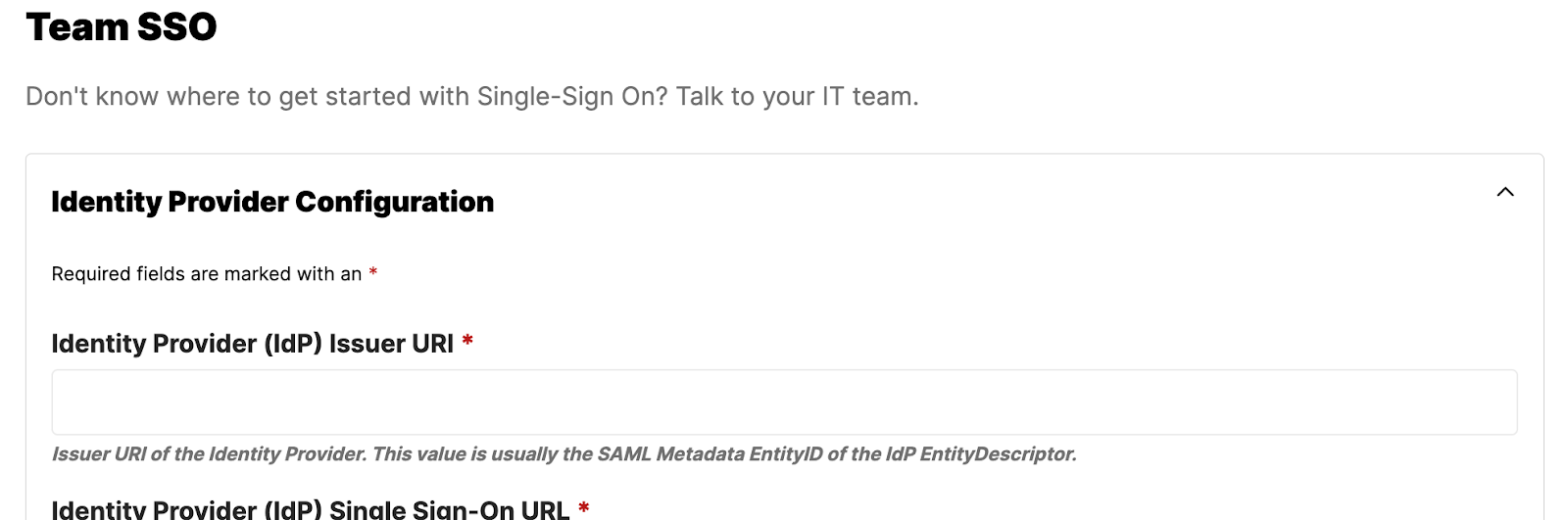
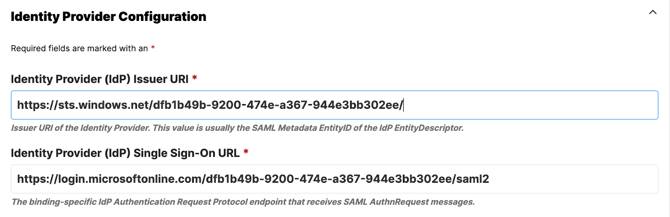

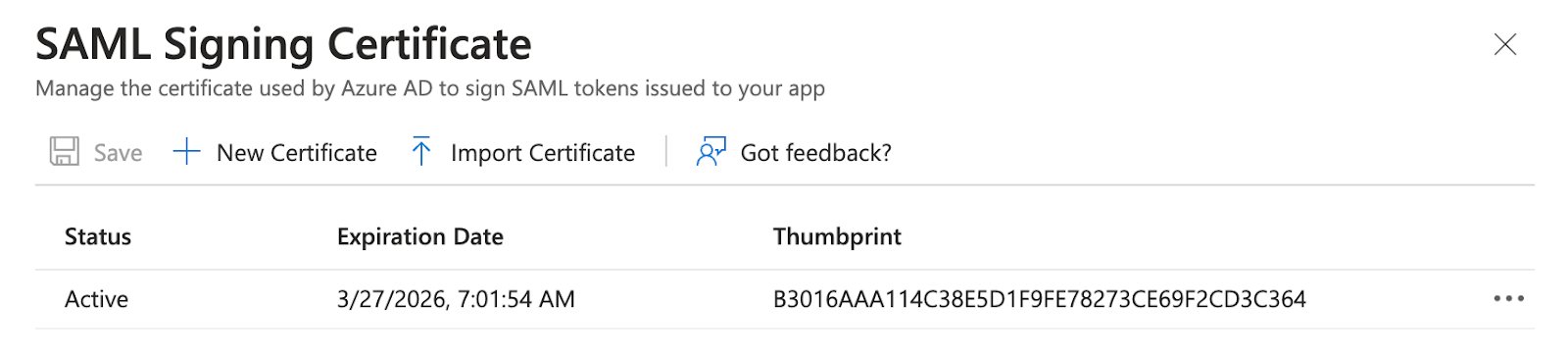
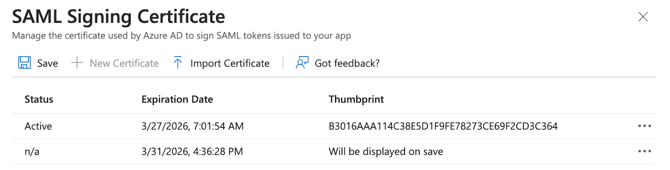
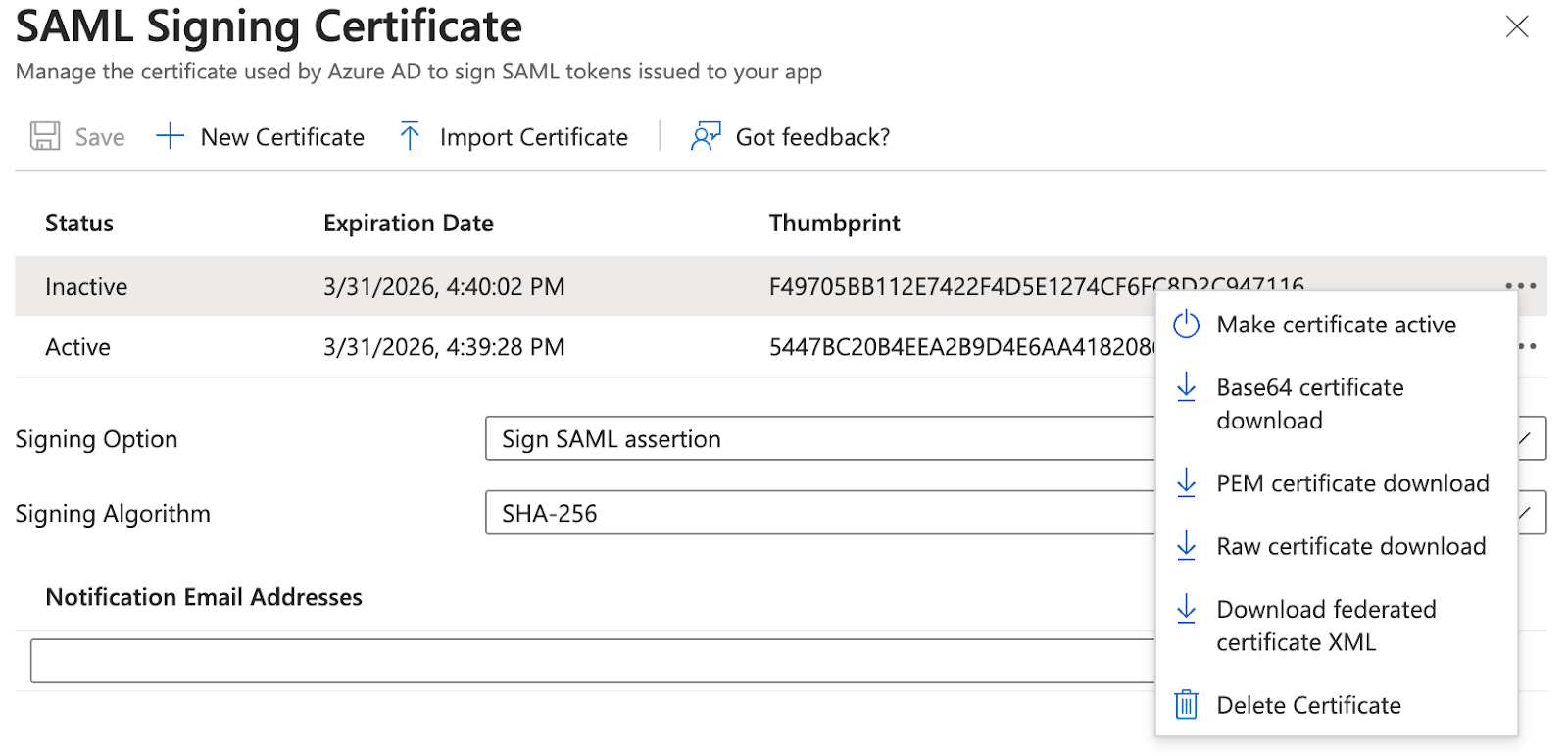
13. Click Save. The new certificate row will now have Status Inactive.