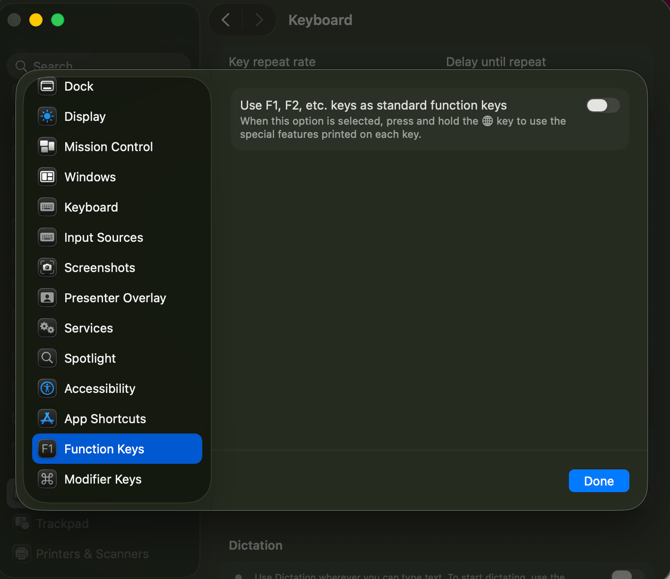
At this time, Cybrary Labs does not have virtual keyboards built for our lab environments.
If your native keyboard does not have the special characters necessary when working in a virtual machine, we recommend utilizing a virtual or an external keyboard.
Below are several resources:
Skillable Virtual Labs
- https://docs.skillable.com/docs/keyboard-accessibility
- https://docs.skillable.com/docs/how-do-i-make-my-international-keyboard-work-in-the-lab-interface-2
Windows Devices
On-Screen Keyboard
Enable on-screen keyboard (for Windows 11 device):
Go to Start , then select Settings > Accessibility > Keyboard, and turn on the On-Screen Keyboard toggle. A keyboard that can be used to move around the screen and enter text will appear on the screen. The keyboard will remain on the screen until you close it.
Keyboard Language
To change your keyboard language:
Select Start > Settings > Time & language > Language & Region. Choose a language from the Windows display language menu.
Mac Devices
On-screen Keyboard
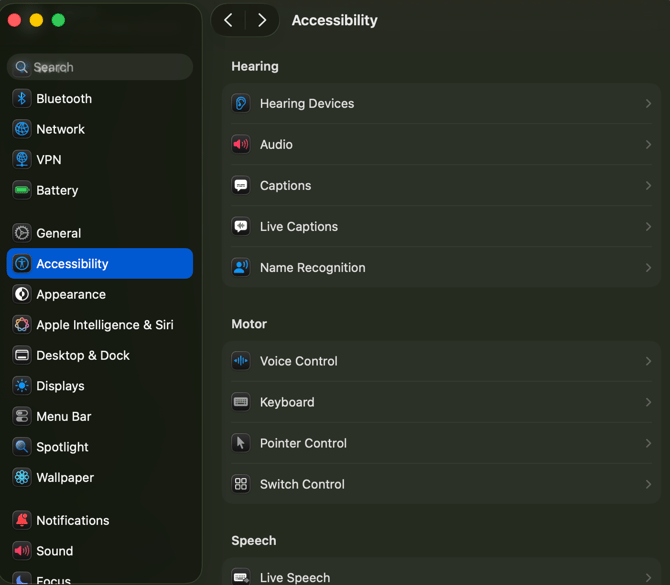
Under System Settings, your Mac device has an on-screen virtual keyboard. This can be found under Accessibility section > Motor:
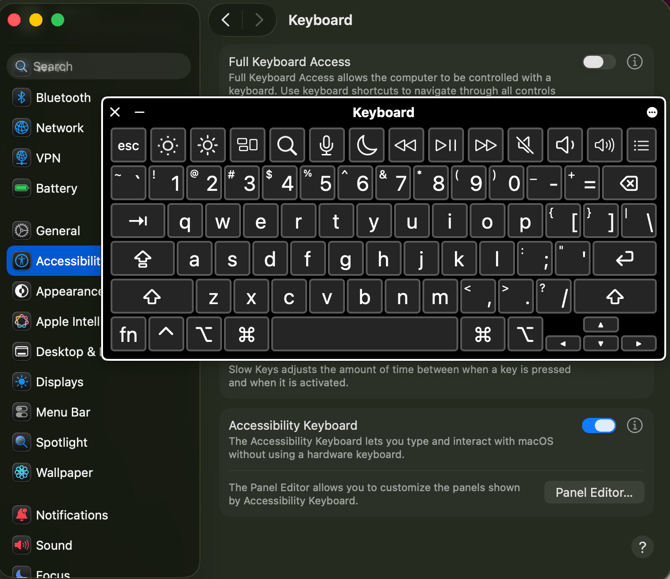
Under the Keyboard, toggle the Accessibility Keyboard:
Keyboard Language
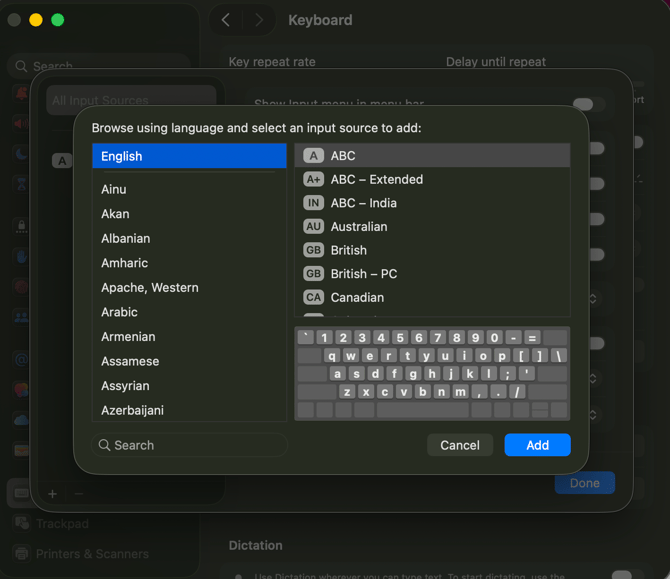
If your keyboard language is not English - US or UK, you will need to add this language to your settings to access special characters.
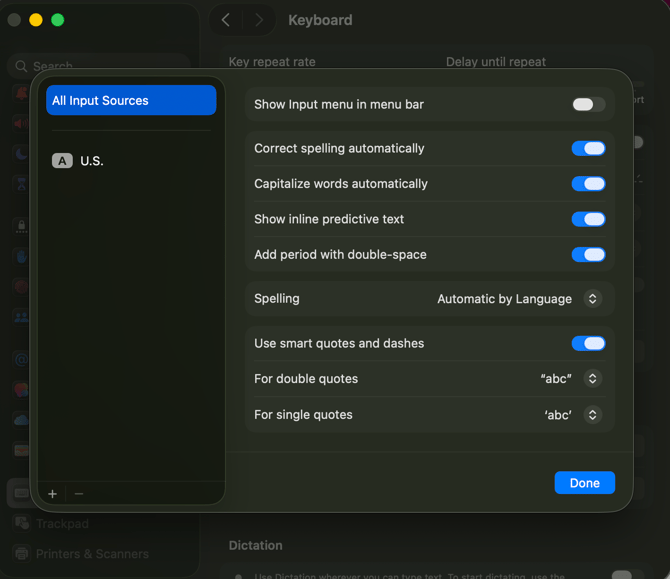
Navigate to System Settings > Keyboard > under Text Input, click Edit:
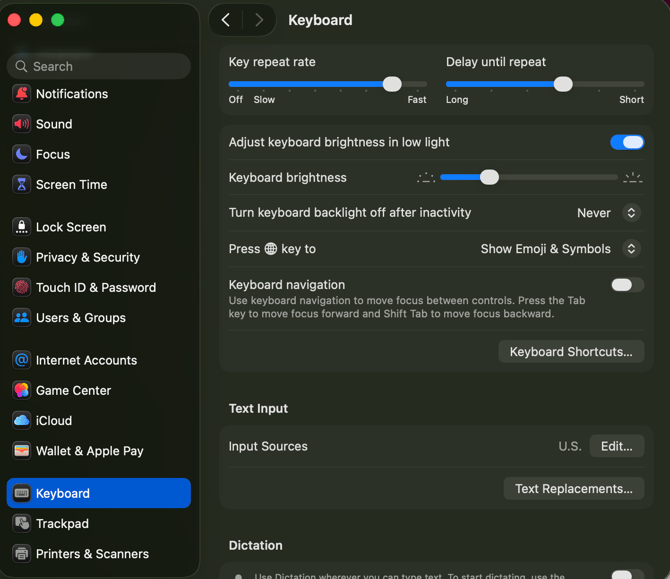
Add (+) U.S. English as a language and click Done:
Function Keys
If you’re looking to utilize Function (FN) with an on-screen keyboard, you can click Keyboard Shortcuts > Function Keys:
Toggle on “Use F1, F2, etc. keys as standard function keys”