---
title: Virtual Keyboards
description: Virtual and On-Screen Keyboards for learners
---
[Skip to content](https://help.cybrary.it/virtual-keyboards#main-content)
English
Show submenu for translations
[](https://help.cybrary.it/?hsLang=en)
Open main navigation
Close main navigation
- English
Show submenu for translations
- [Contact us](mailto:support@cybrary.it)
[Contact us](mailto:support@cybrary.it)
How can we help you?
- There are no suggestions because the search field is empty.
1. [Cybrary User Help Center](https://help.cybrary.it/?hsLang=en)
2. [Learner Support](https://help.cybrary.it/learner-support?hsLang=en)
3. [Tech Support](https://help.cybrary.it/learner-support?hsLang=en#tech-support)
December 16, 2025
# Virtual Keyboards
At this time, Cybrary Labs does not have virtual keyboards built for our lab environments.
If your native keyboard does not have the special characters necessary when working in a virtual machine, we recommend utilizing a virtual or an external keyboard.
Below are several resources:
### Skillable Virtual Labs
- [https://docs.skillable.com/docs/keyboard-accessibility](https://docs.skillable.com/docs/keyboard-accessibility)
- [https://docs.skillable.com/docs/how-do-i-make-my-international-keyboard-work-in-the-lab-interface-2](https://docs.skillable.com/docs/how-do-i-make-my-international-keyboard-work-in-the-lab-interface-2)
### Windows Devices
#### **On-Screen Keyboard**
Enable [on-screen keyboard](https://support.microsoft.com/en-us/windows/use-the-on-screen-keyboard-osk-to-type-ecbb5e08-5b4e-d8c8-f794-81dbf896267a#:~:text=in%20tablet%20mode.-,To%20open%20the%20On%2DScreen%20Keyboard,will%20appear%20on%20the%20screen.) (for Windows 11 device):
Go to **Start** , then select **Settings** \> **Accessibility** \> **Keyboard**, and turn on the **On-Screen Keyboard** toggle. A keyboard that can be used to move around the screen and enter text will appear on the screen. The keyboard will remain on the screen until you close it.
#### **Keyboard Language**
To change your [keyboard language](https://support.microsoft.com/en-us/windows/manage-the-input-and-display-language-settings-in-windows-12a10cb4-8626-9b77-0ccb-5013e0c7c7a2#:~:text=Select%20the%20Start%20button%2C%20then,keyboard%20you%20want%20to%20add.):
Select **Start** \> **Settings** \> **Time & language** \> **Language & Region**. Choose a language from the Windows display language menu.
### Mac Devices
#### On-screen Keyboard
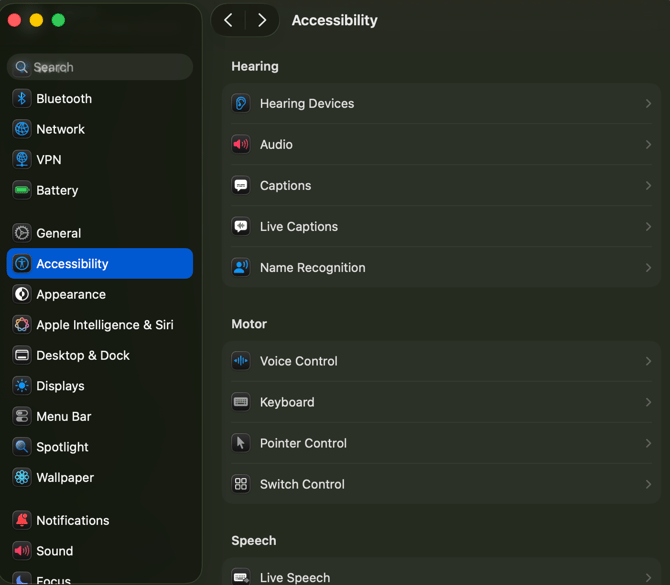
Under **System Settings**, your Mac device has an on-screen virtual keyboard. This can be found under **Accessibility** section \> **Motor:**
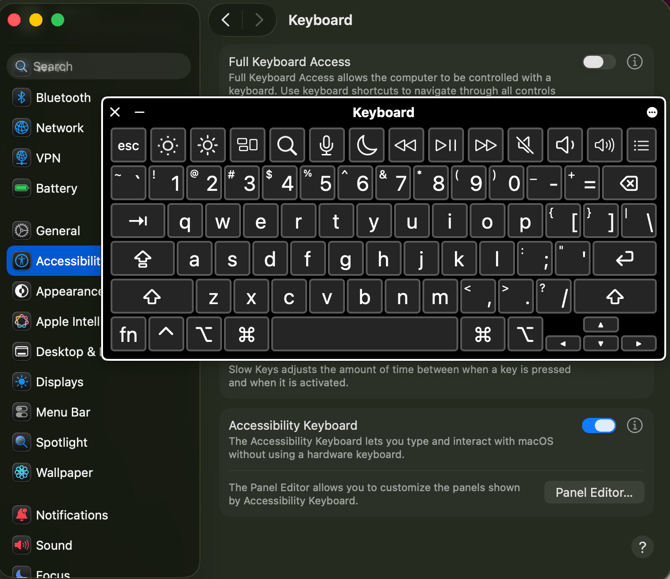
Under the **Keyboard**, toggle the **Accessibility Keyboard**:
#### **Keyboard Language**
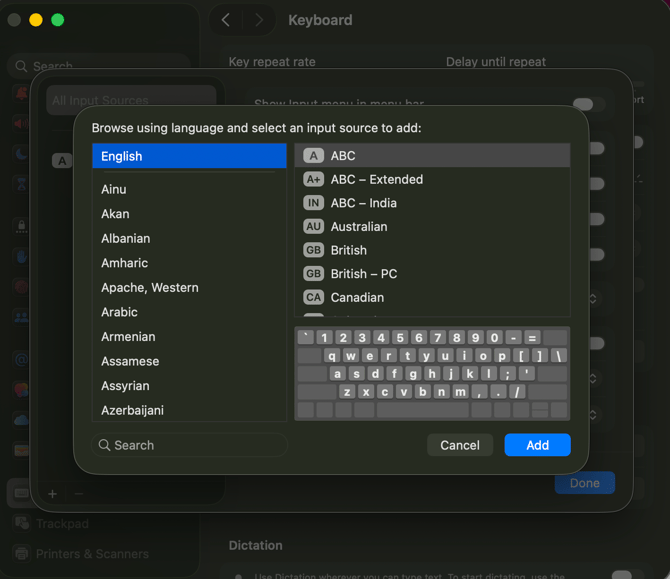
If your keyboard language is not English - US or UK, you will need to add this language to your settings to access special characters.
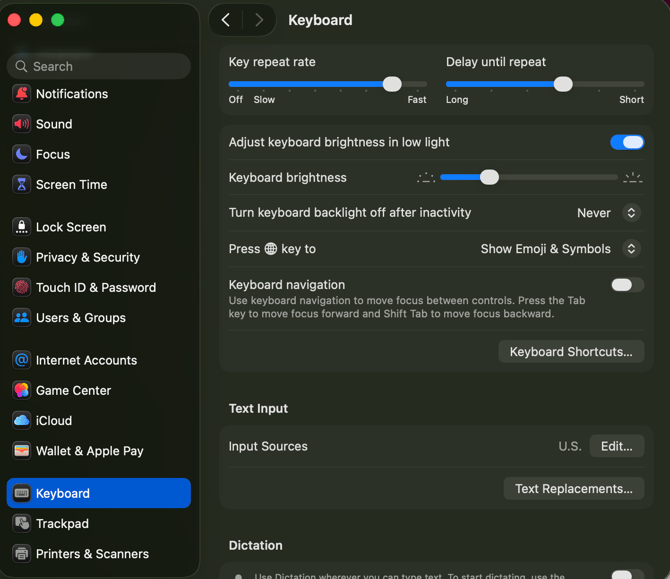
Navigate to **System Settings** \> **Keyboard** \> under Text Input, click **Edit**:
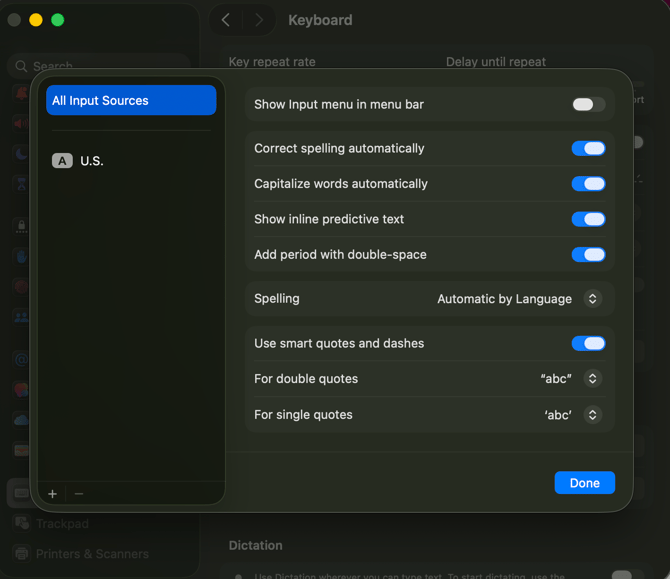
Add (+) U.S. English as a language and click **Done**:
#### **Function Keys**
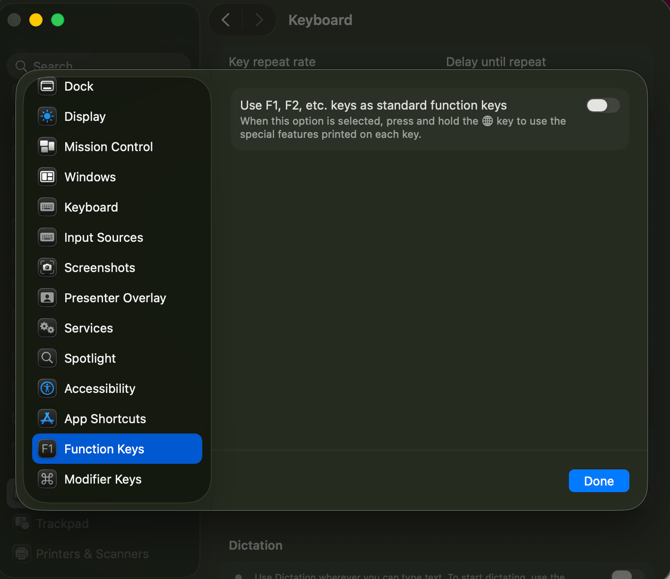
If you’re looking to utilize Function (FN) with an on-screen keyboard, you can click **Keyboard Shortcuts** \> **Function Keys**:

Toggle on “**Use F1, F2, etc. keys as standard function keys**”
- [Cybrary for Teams](https://help.cybrary.it/cybrary-for-teams?hsLang=en)
- [Cybrary Insider Pro](https://help.cybrary.it/cybrary-insider-pro?hsLang=en)
- [Content Catalog](https://help.cybrary.it/content-catalog?hsLang=en)
- [Learner Support](https://help.cybrary.it/learner-support?hsLang=en#main-content)
- [Get Started With Cybrary](https://help.cybrary.it/learner-support?hsLang=en#get-started-with-cybrary)
- [Tech Support](https://help.cybrary.it/learner-support?hsLang=en#tech-support)
- [Privacy Policy](https://www.cybrary.it/privacy-policy)
- [Cookie Policy](https://www.cybrary.it/cookie-policy)
- [Terms of Service](https://www.cybrary.it/terms-service)
- [Return to Main Website →](https://www.cybrary.it/)
[](https://help.cybrary.it/?hsLang=en)
[mailto:support@cybrary.it](mailto:support@cybrary.it)
Copyright © 2025, Cybrary